Salesforce Navigation & Operations
HAP Customer Service & GBA Crash Course
Salesforce Access & Setup
1. Accessing the Service Console
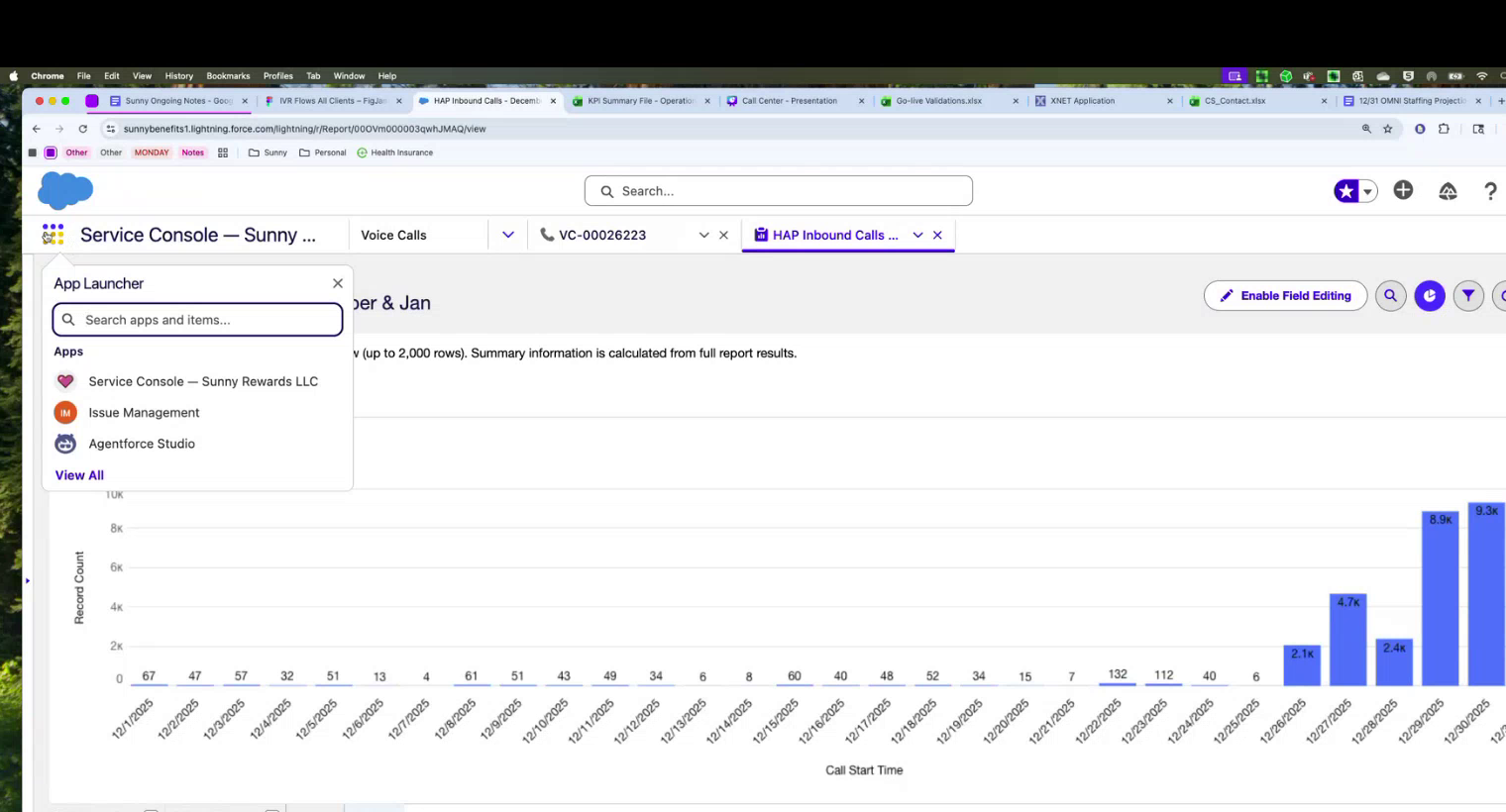
Locate the "hamburger menu" in the top left to switch to the Service Console. If it isn't visible, click "View All" to see the full list of apps.
2. Syncing Data (Critical Step)
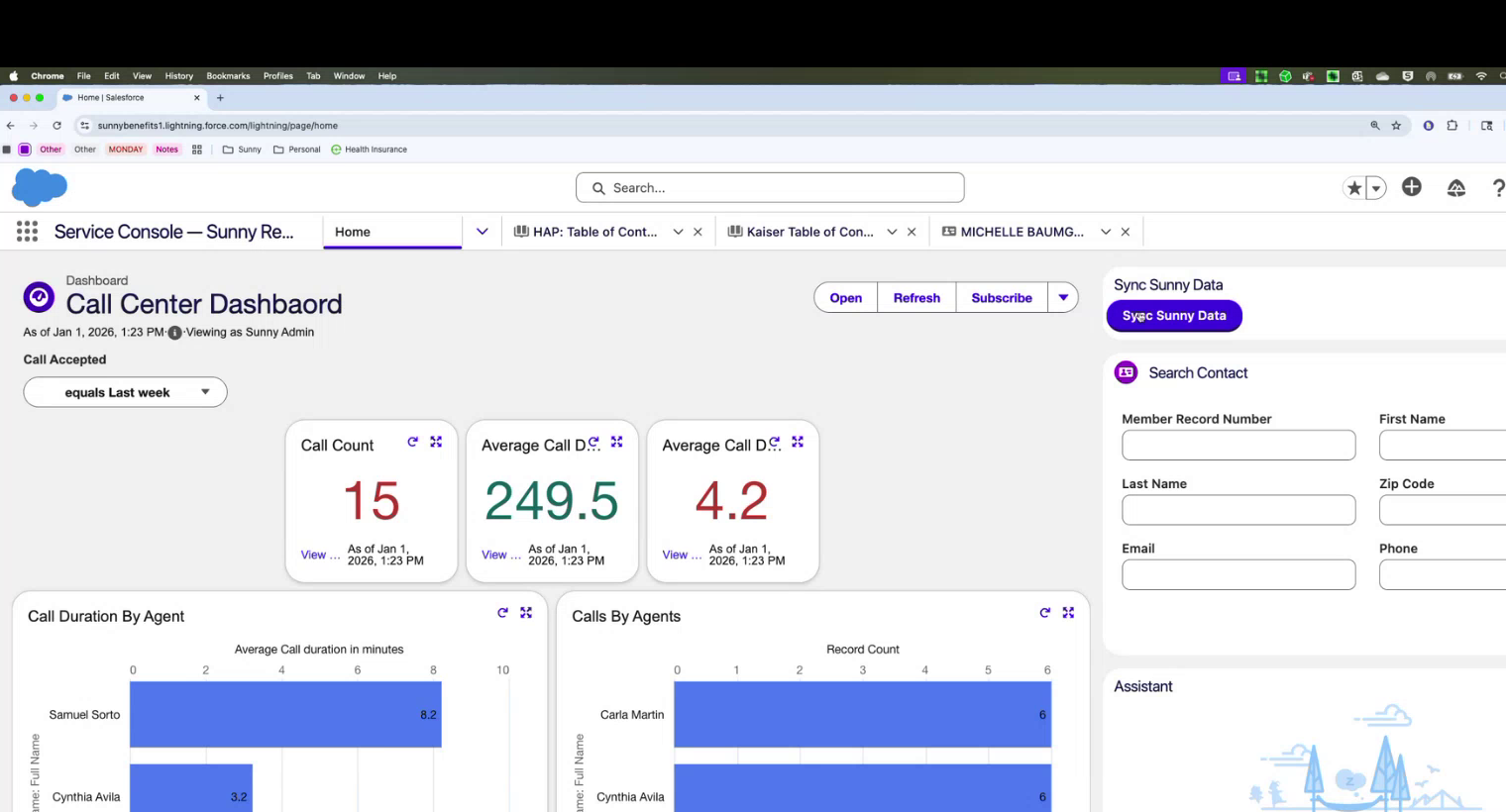
On the Home page, you must click the "Sync Sunny Data" button to ensure member card and transaction information is pulled into Salesforce.
3. Omni-Channel (Going Live)
In the bottom left, click the Omni-Channel button to switch from "Offline" to "Available" to start receiving calls.
Member Profiles & Validation
1. Pulling Up Records
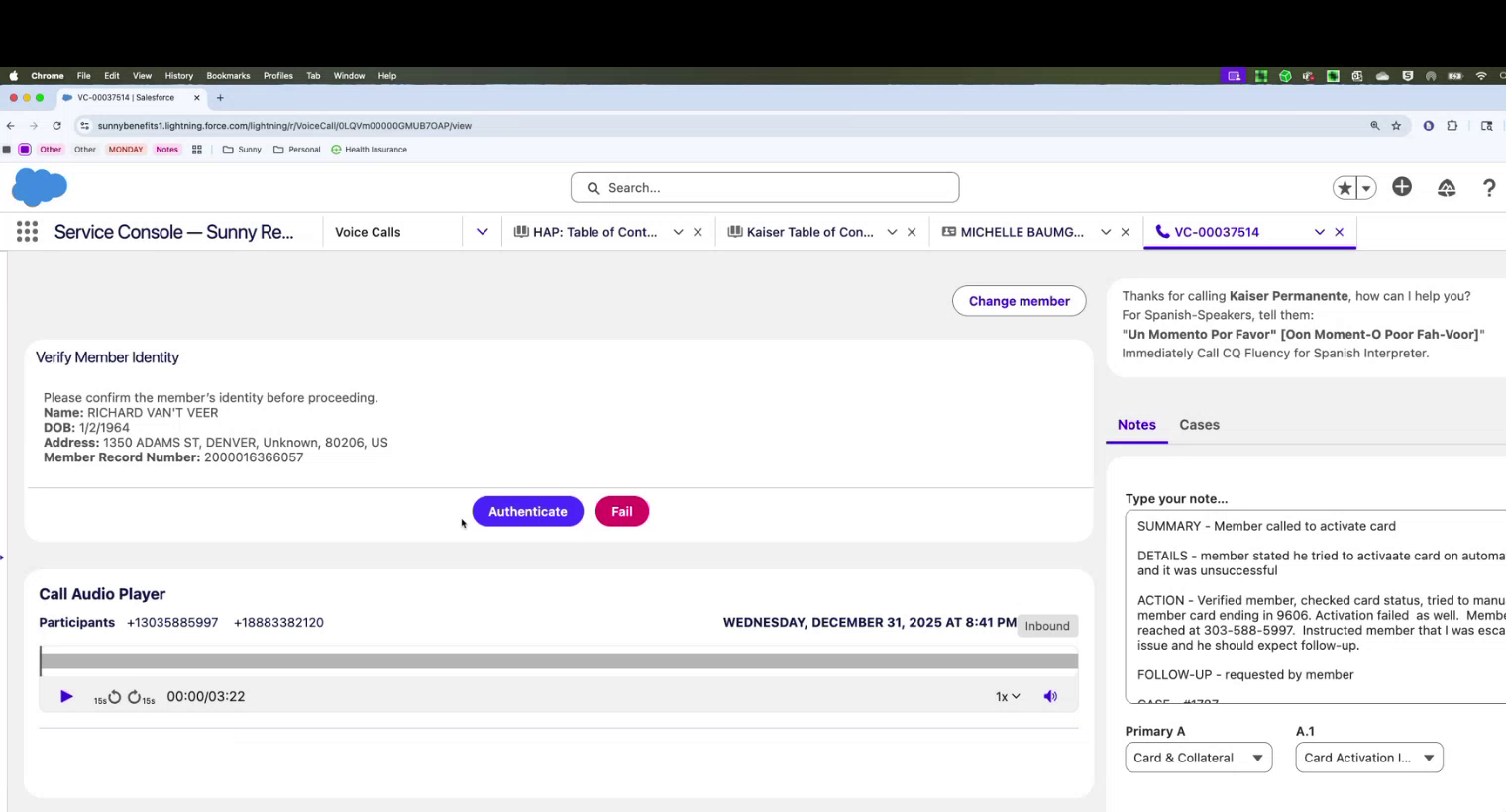
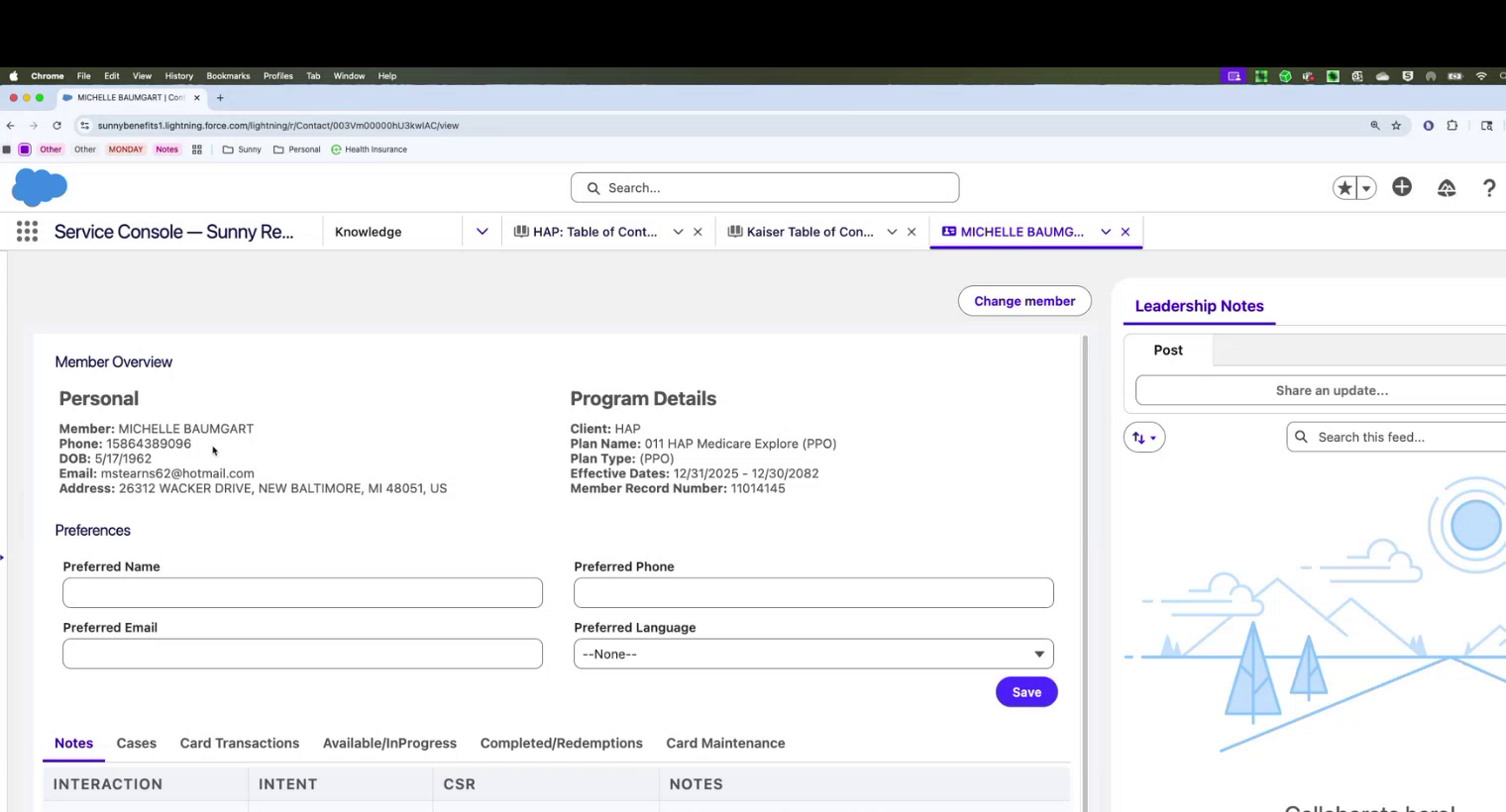
If a call doesn't auto-populate, use the "Change Member" button to search for a record using name, e-mail, phone, or member ID.
2. Validating the Member
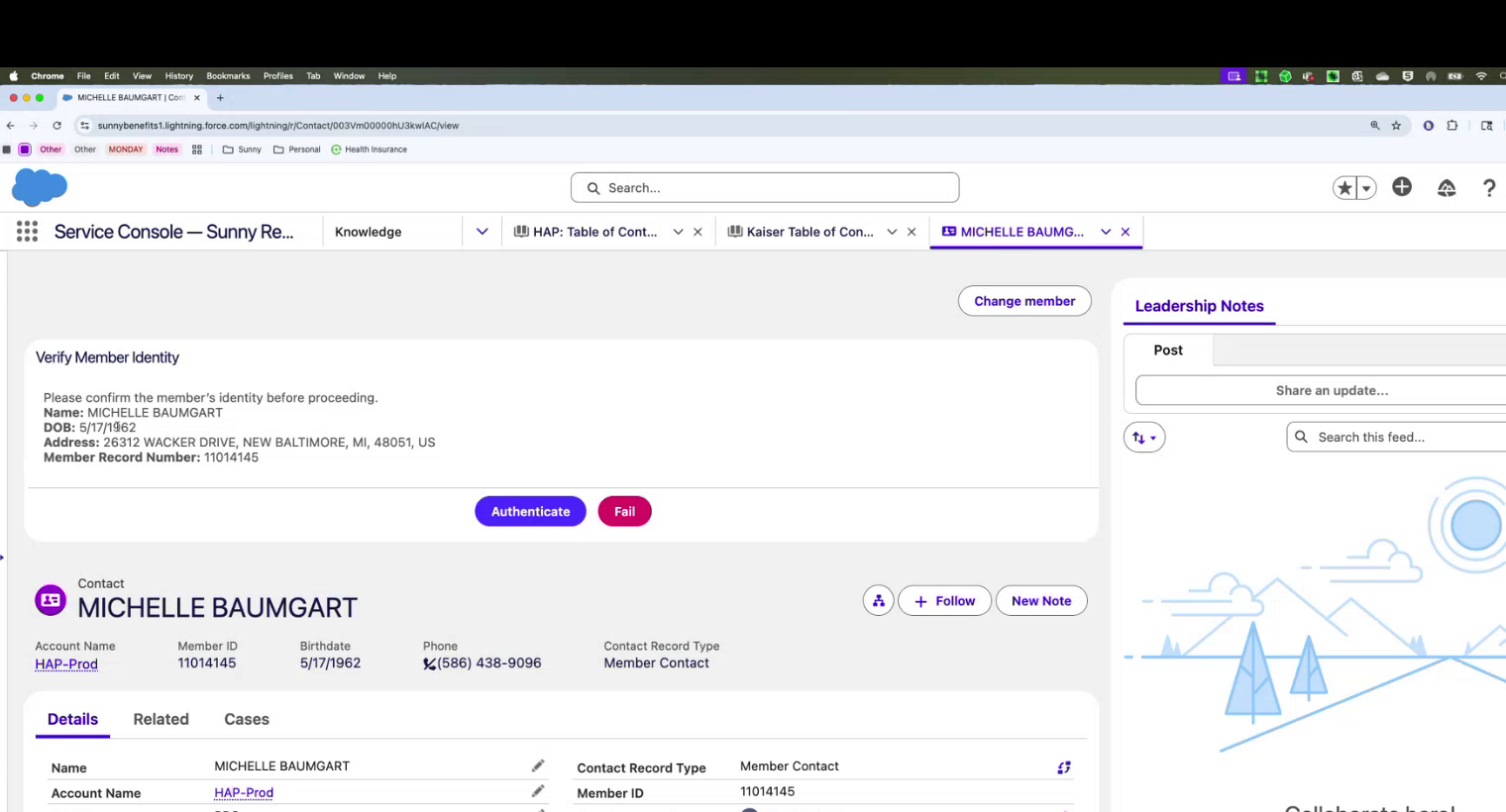
Use the authentication screen to verify at least two pieces of information (e.g., date of birth, address, or member record number).
3. Authenticating
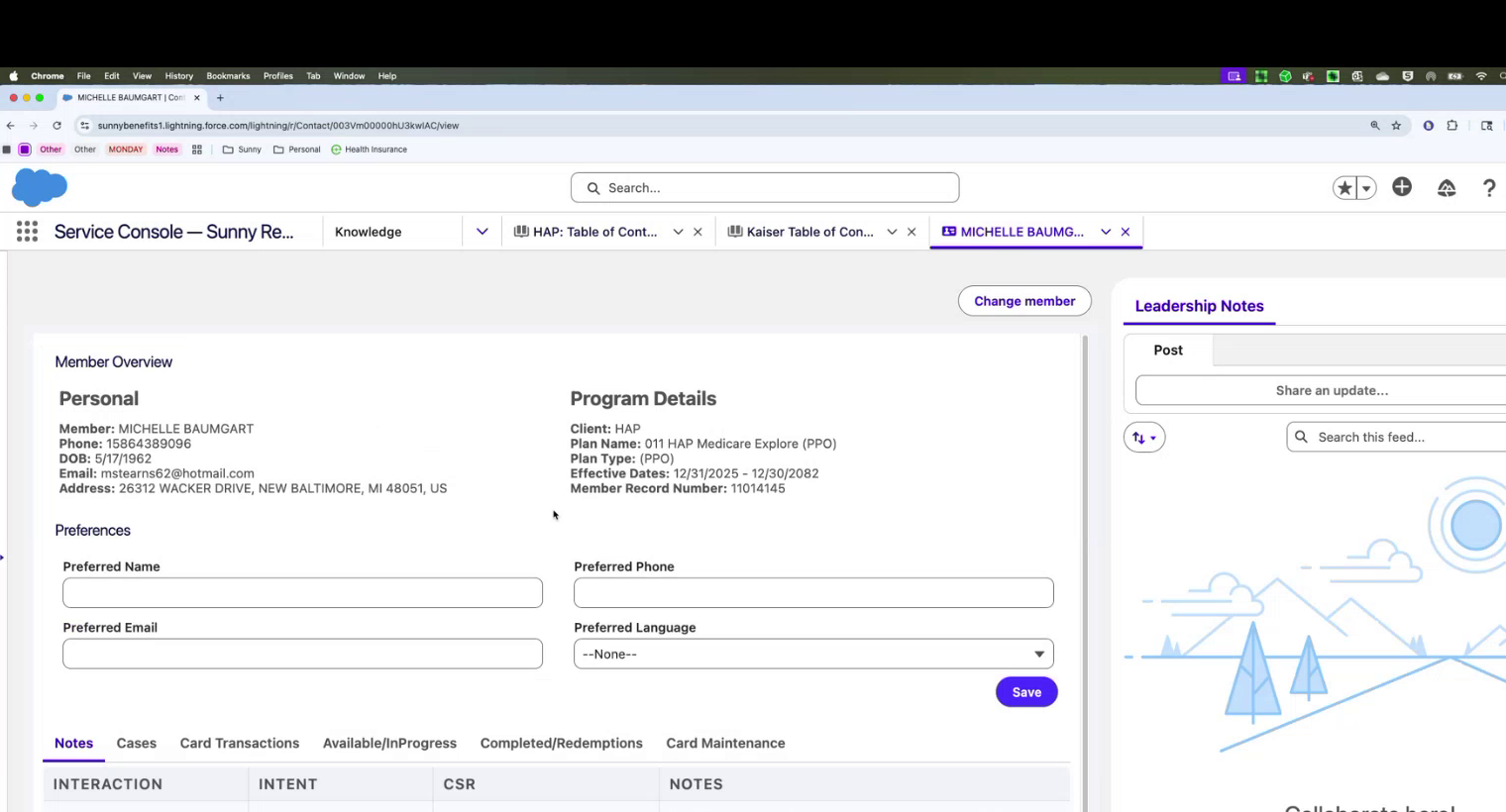
Once verified, click the "Authenticate" button to unlock the full member record.
Case Management & Notes
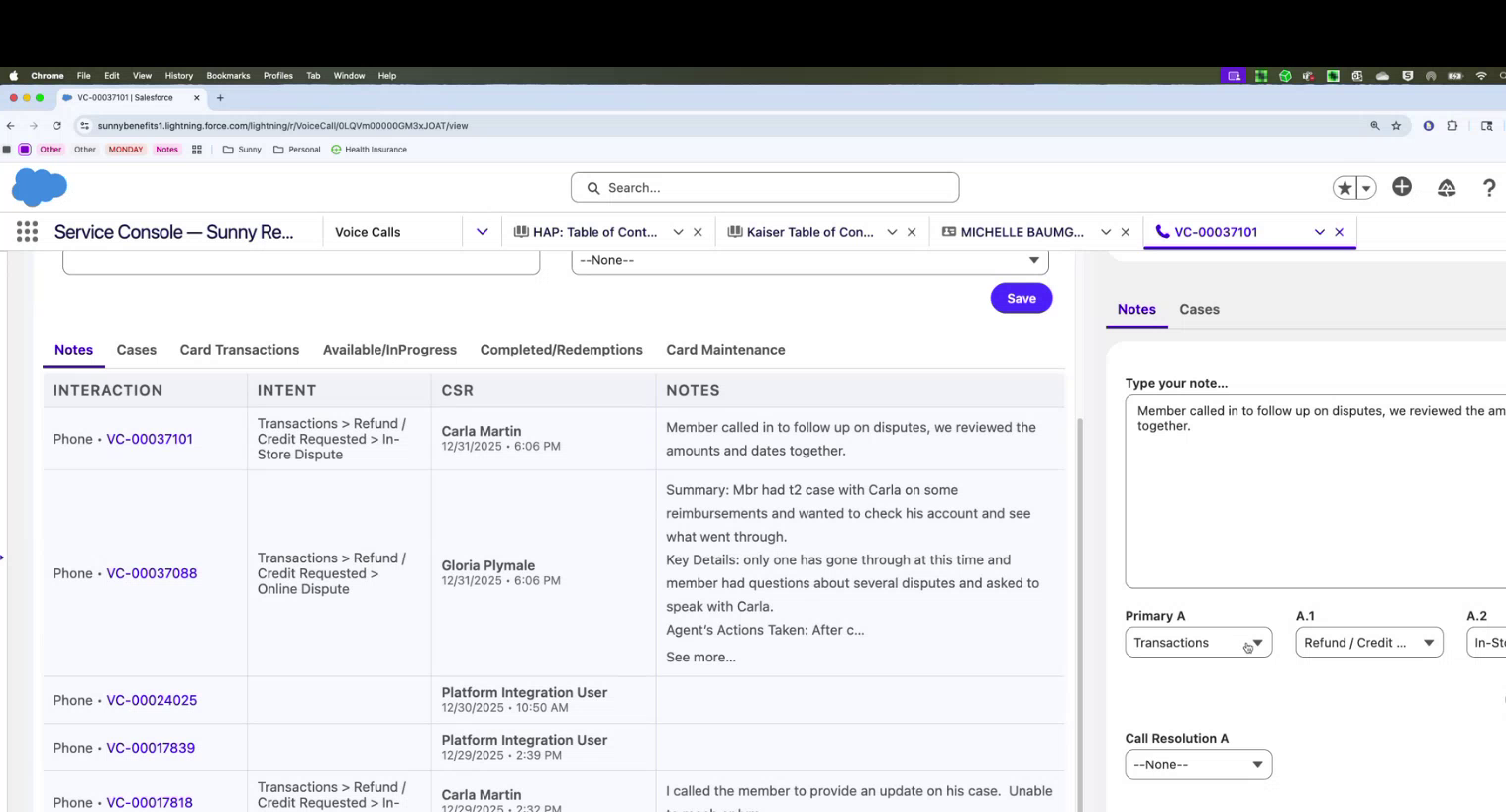
1. Entering Case Notes
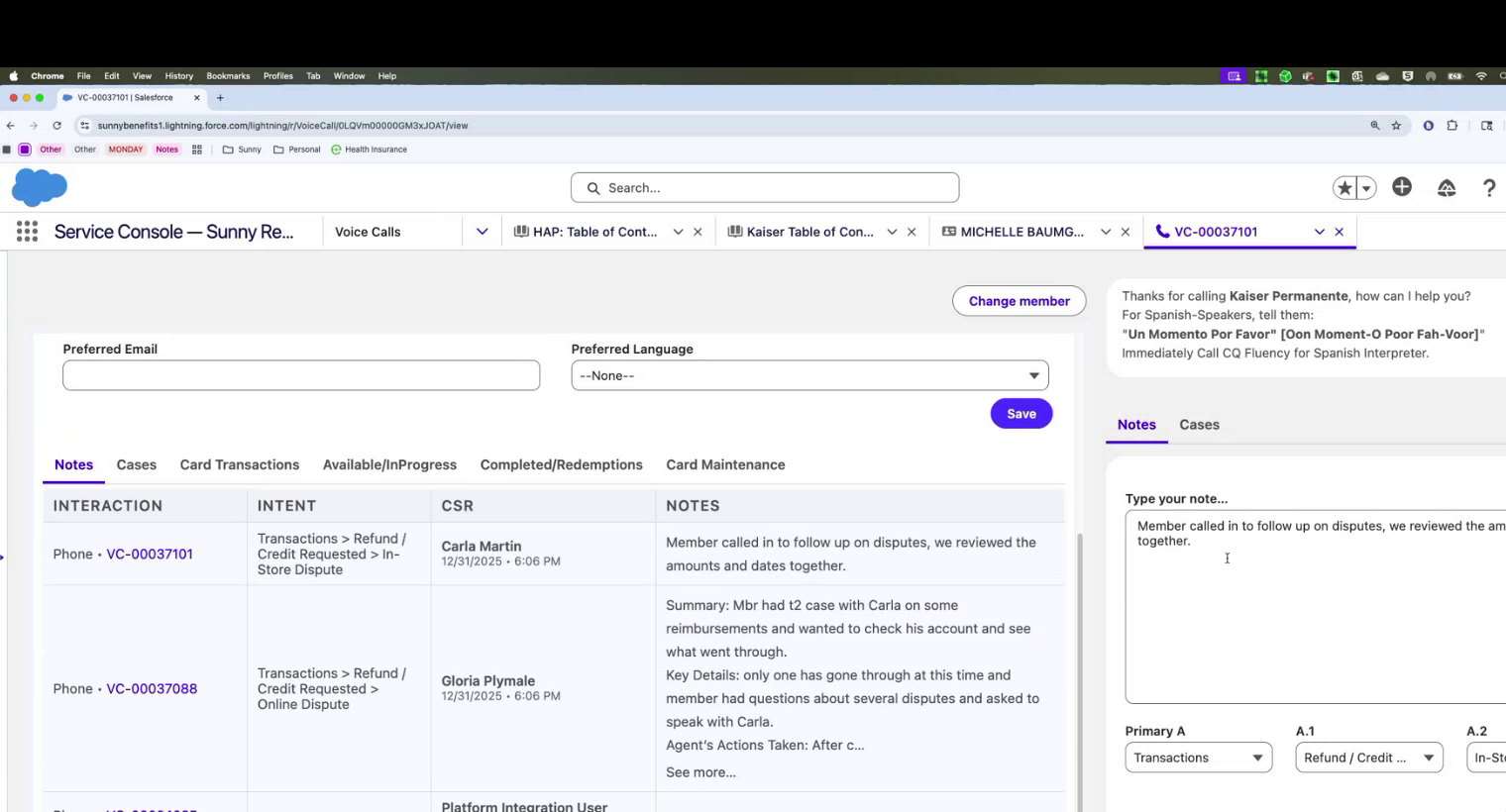
Notes are entered on the right side of the screen. Keep them brief and high-level rather than writing a novel.
2. Routing (Type & Sub-Type)
Use the drop-down menus to select the "Primary Conversation" or intent. This captures data for reporting on why members are calling.
3. Creating a Case (Tier 2)
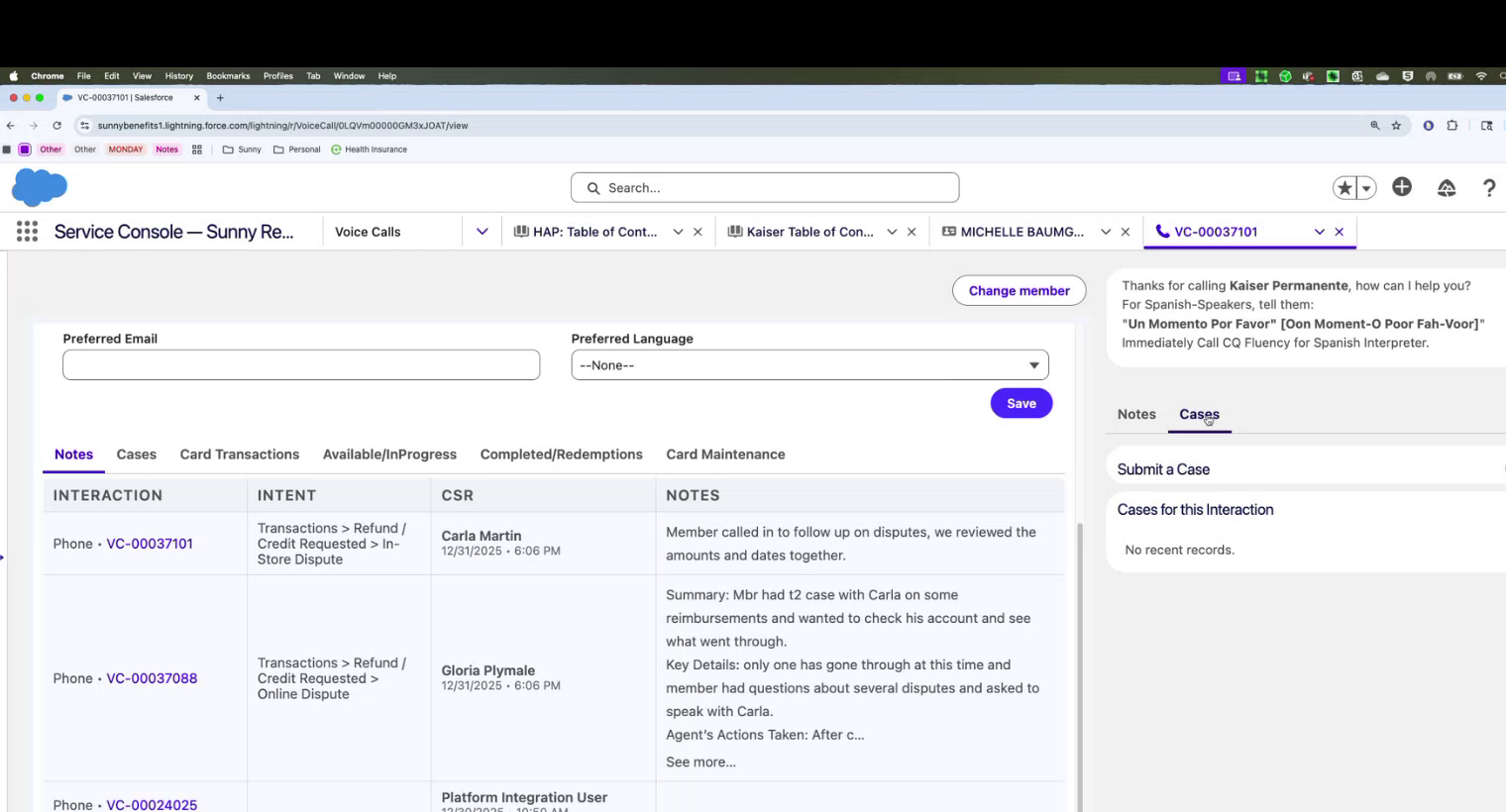
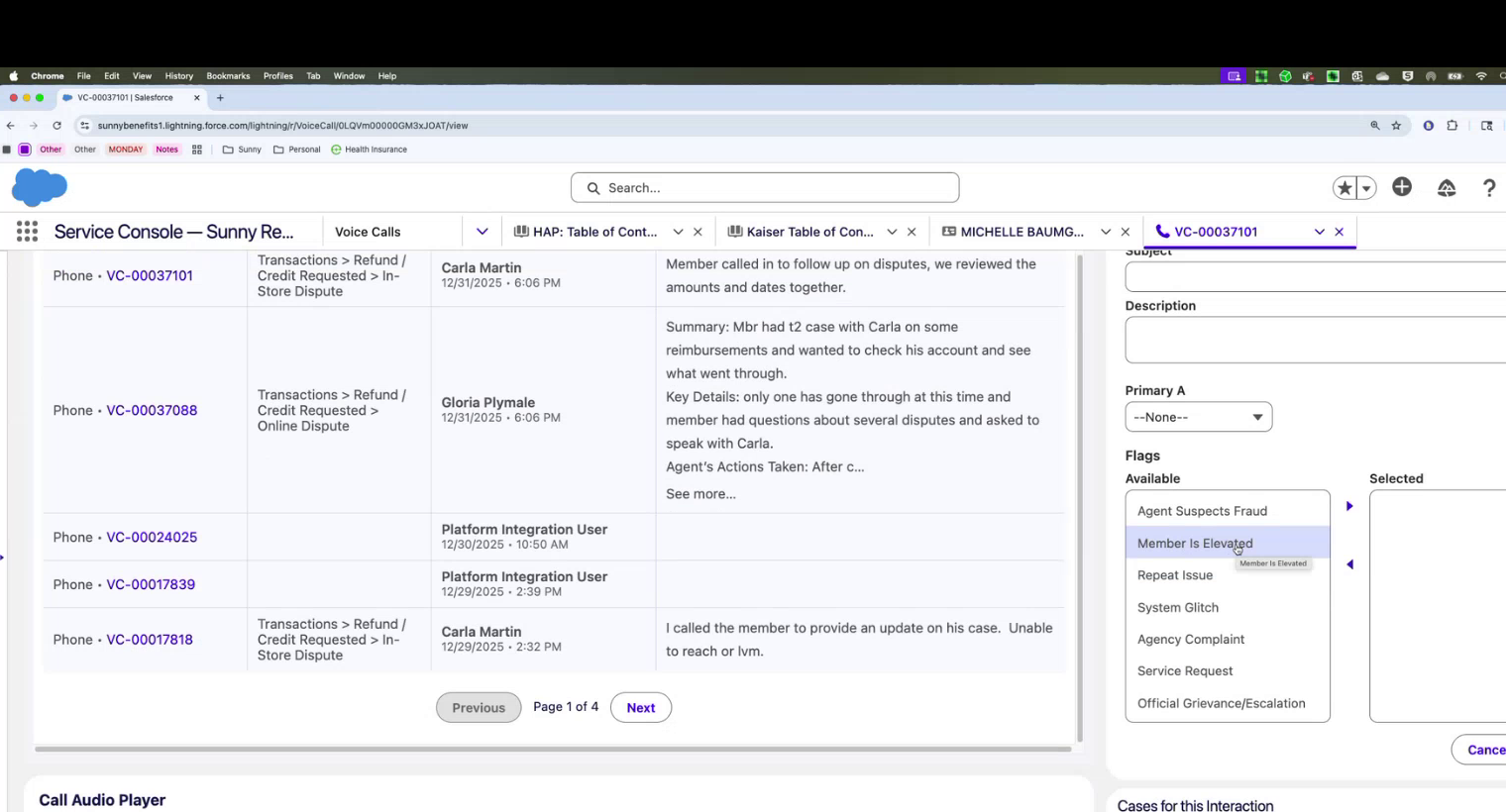
If you cannot solve an issue and need Tier 2 help, click "Add Case" and fill out the subject and description.
4. Case Flags
You can add flags to a case for "Upset Member," "Repeat Issue," or "Grievance".
Member Maintenance Tools
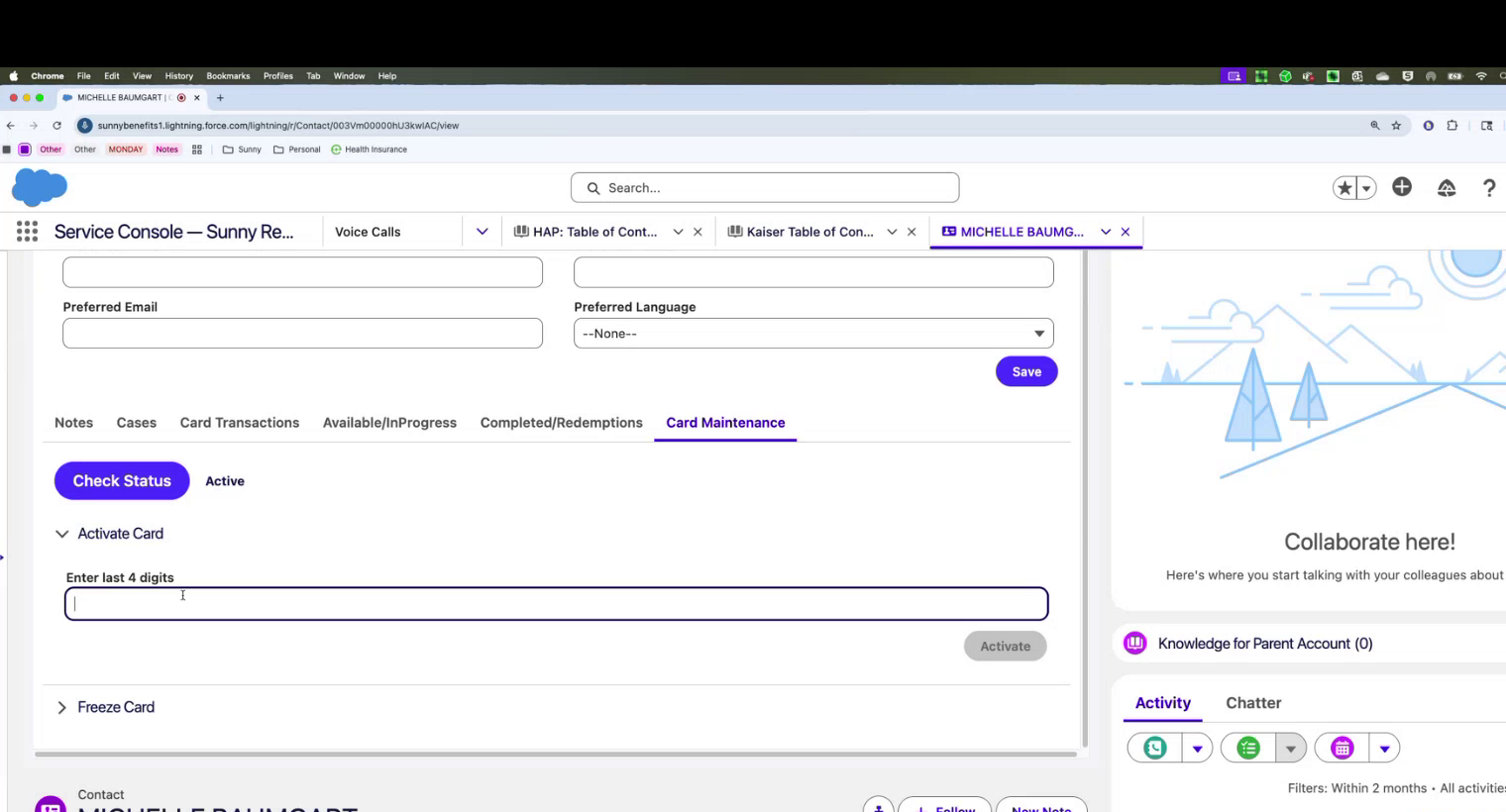
1. Card Activation/Freezing
Under the "Card Maintenance" section, you can activate a card using the last four digits or freeze a card if requested.
2. Checking Benefit Plans
Look at the "Program Details" section on the right to see the specific plan name (e.g., HAP Medicare Explorer) and verify their specific benefit amounts.
Call Transfer Quick Reference
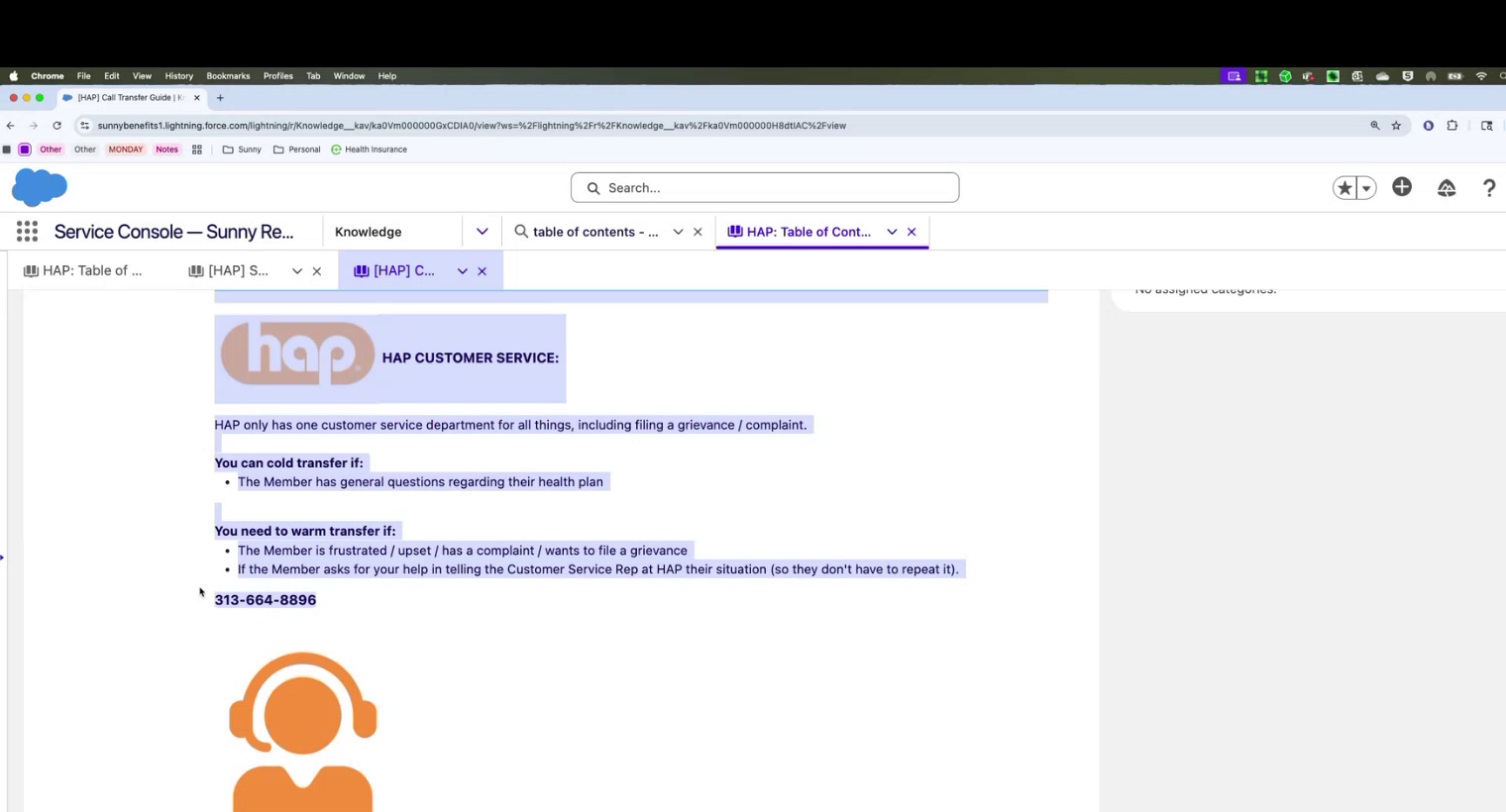
1. HAP General Customer Service
Use for medical history, appointments, or non-rewards questions. Number found in "Call Transfer Guide for HAP".
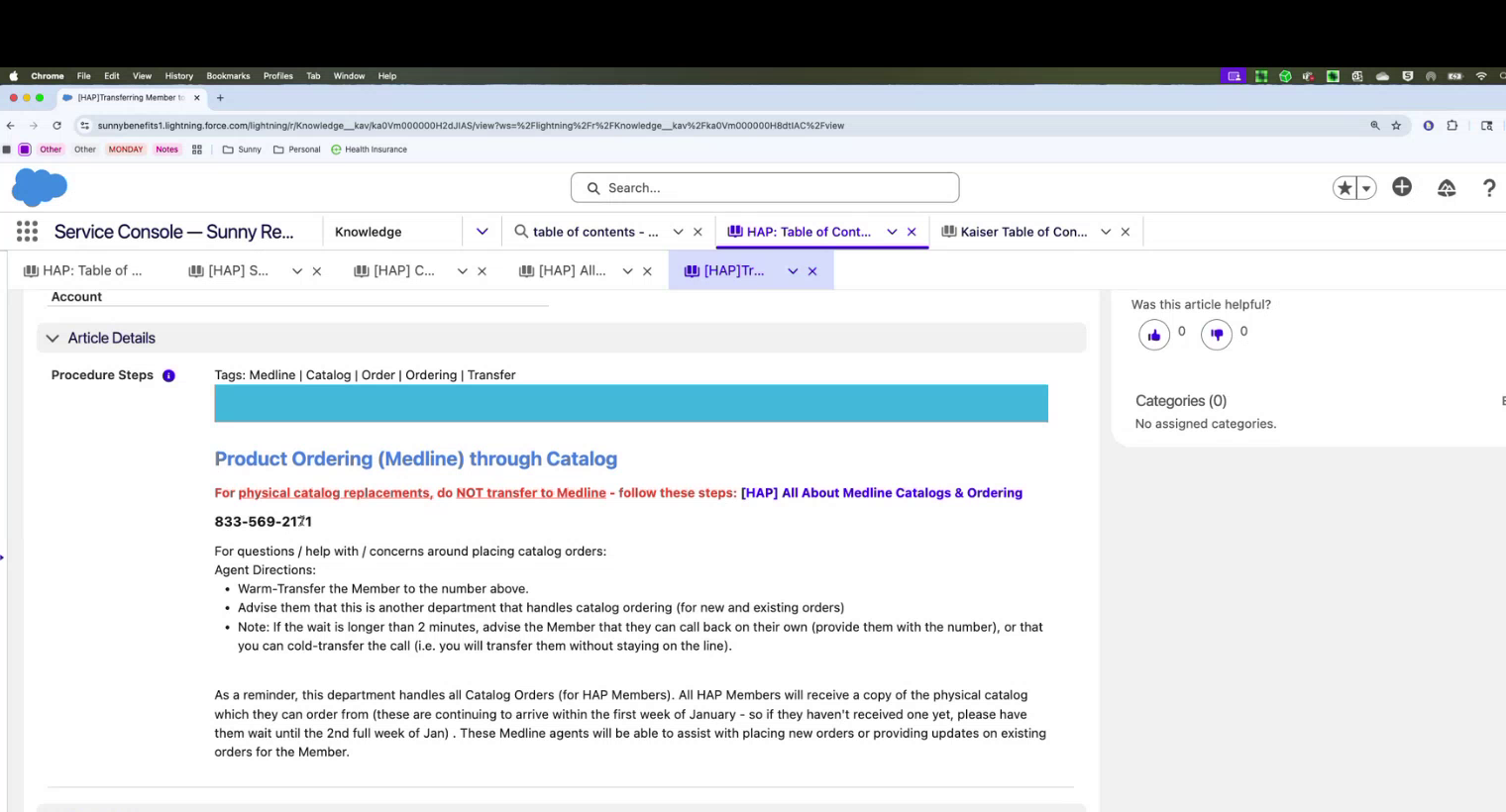
2. Medline (Catalog Ordering)
Use for catalog orders or replacements. Number found in "Transferring a Member to Medline".
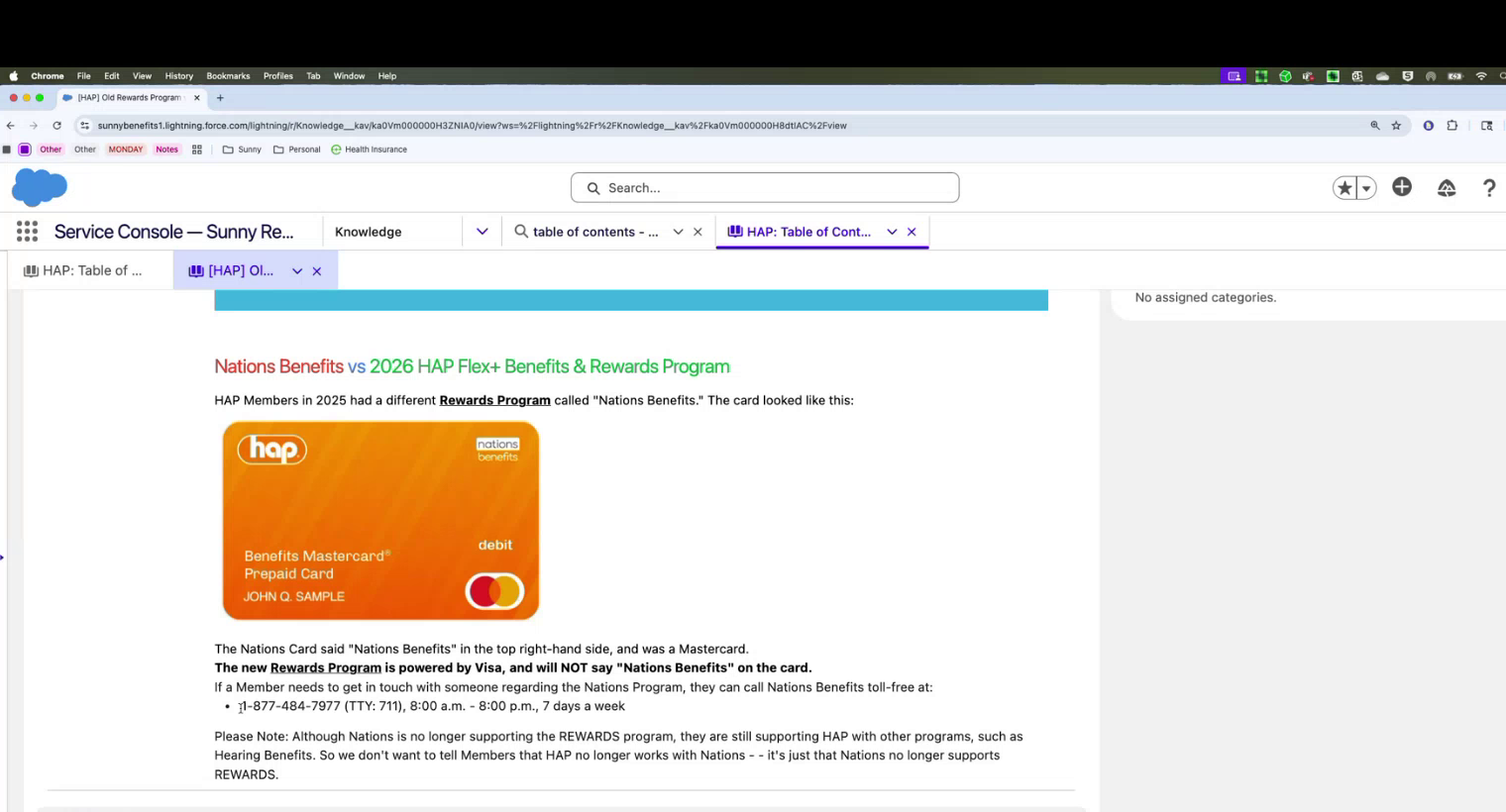
3. Nations Benefits
For "old" card or hearing benefits. Number located in "Old Nations Program vs. New Rewards".
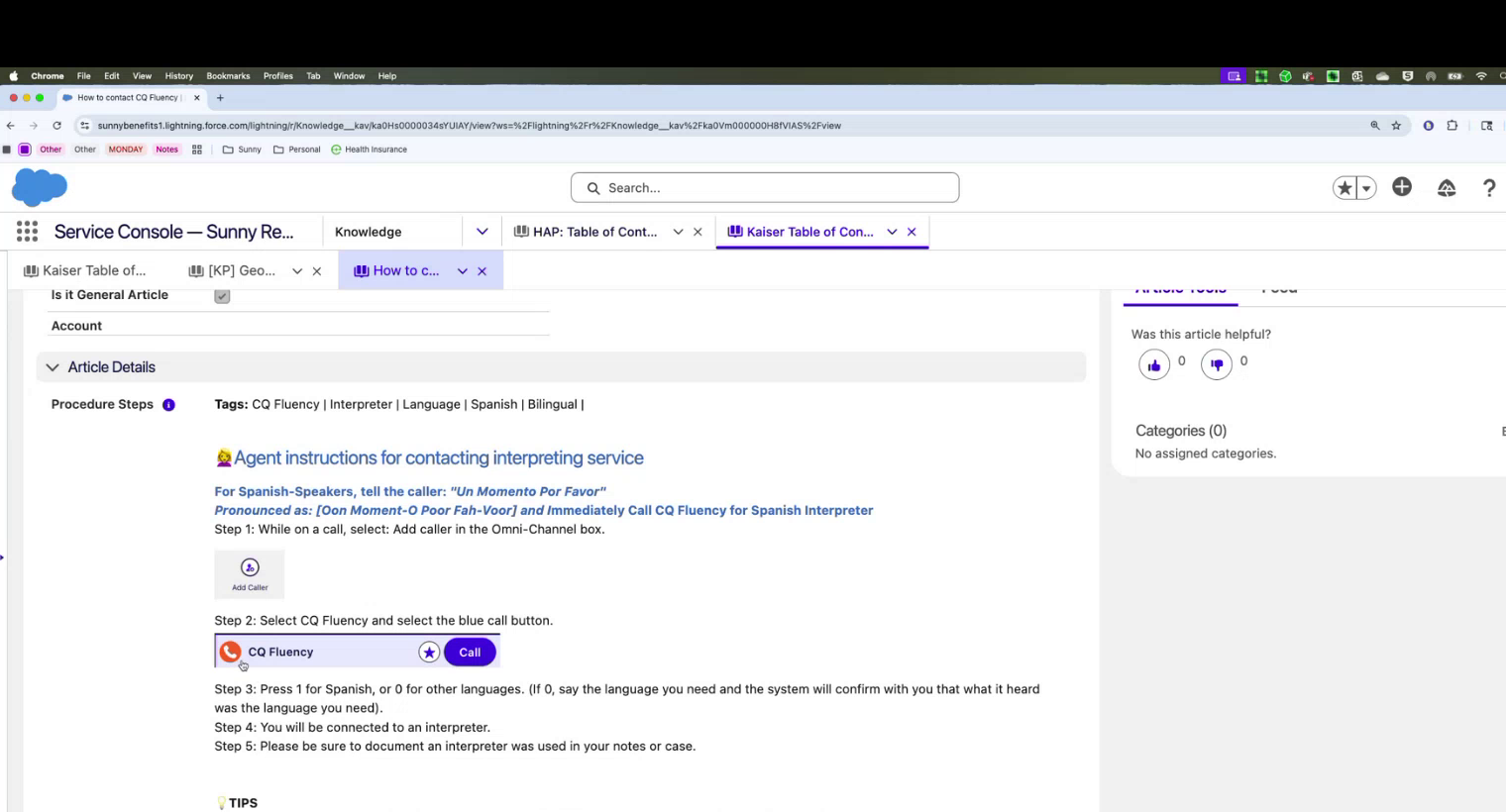
4. Language Support (CQ Fluency)
Use the Salesforce "Quick Dial" menu to get an interpreter (usually within 8 seconds).
5. Transfer Procedures (Warm vs Cold)
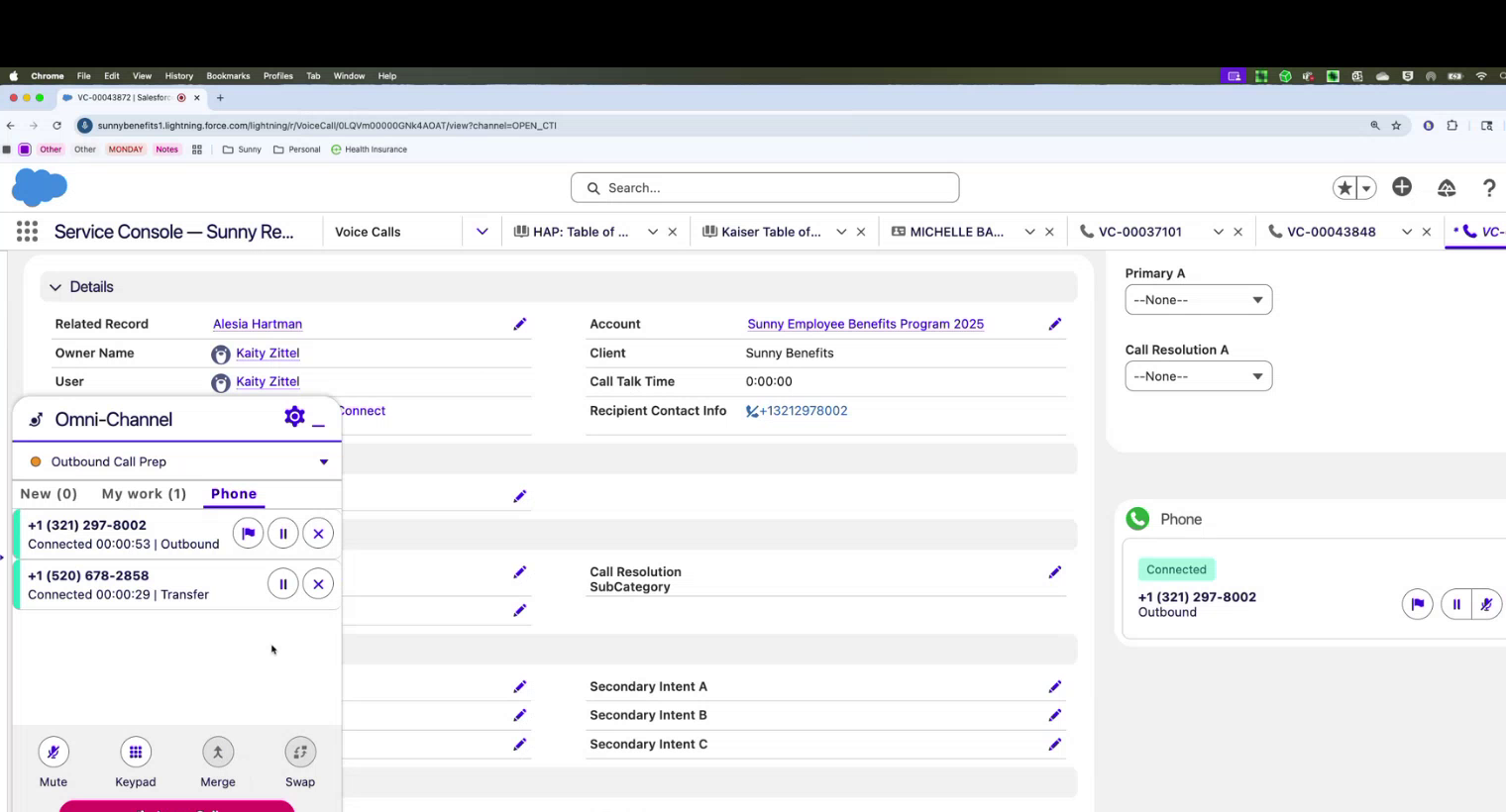
Cold Transfer: For general questions; dial and exit.
Warm
Transfer: If upset/filing grievance; stay to introduce member.
Watch the
Merge and Leave demo.
Essential Resources
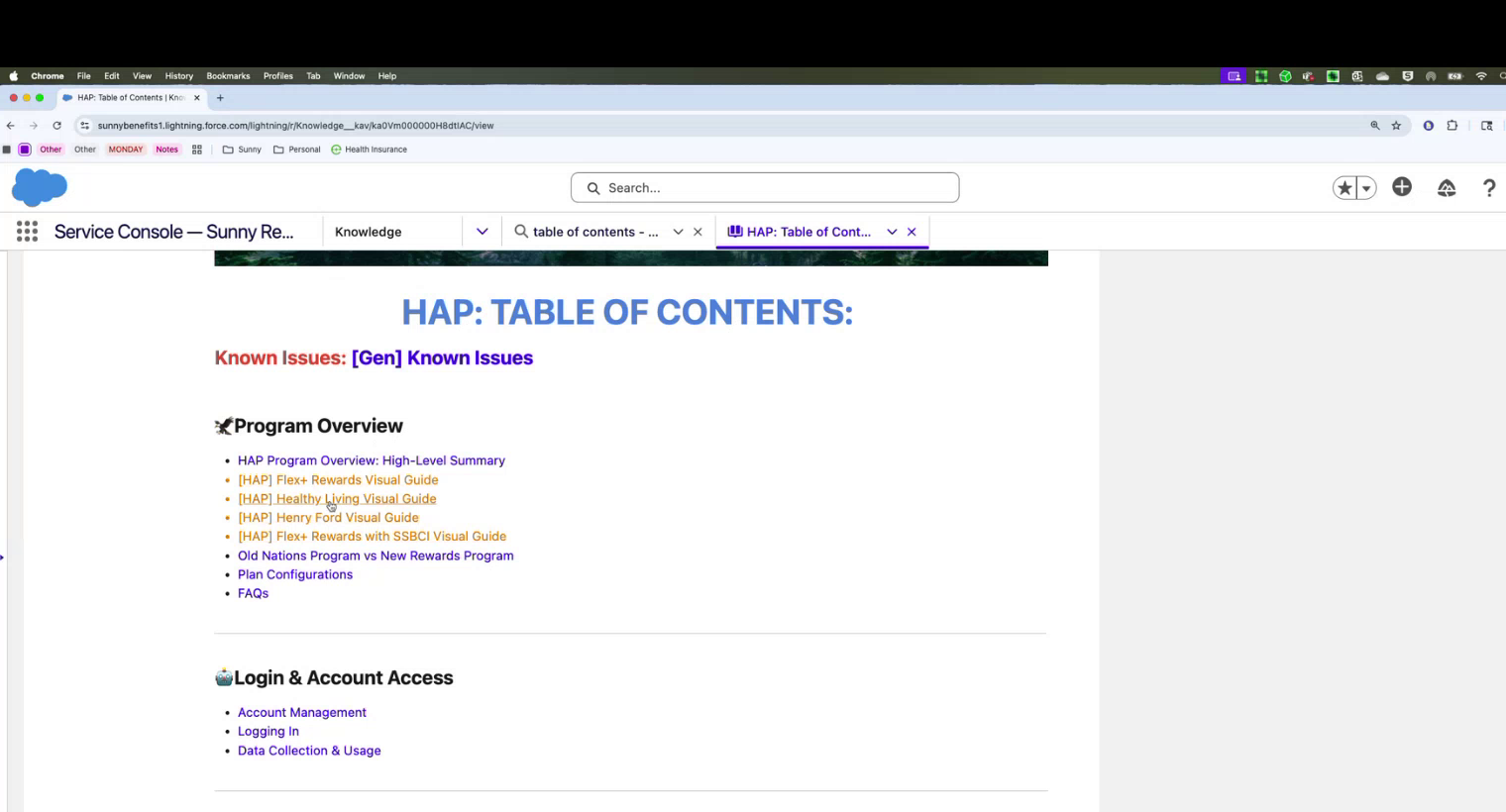
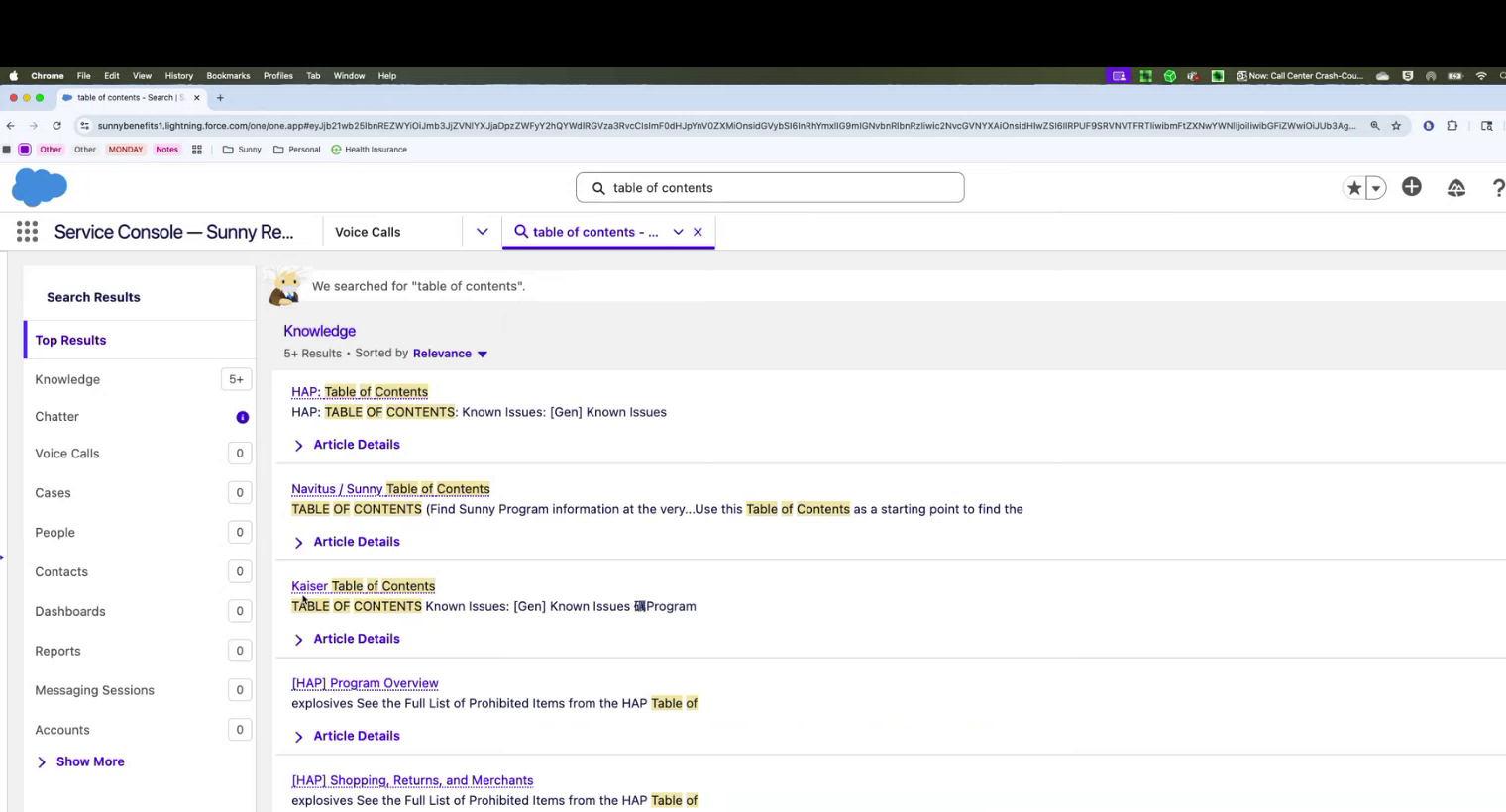
1. HAP Table of Contents
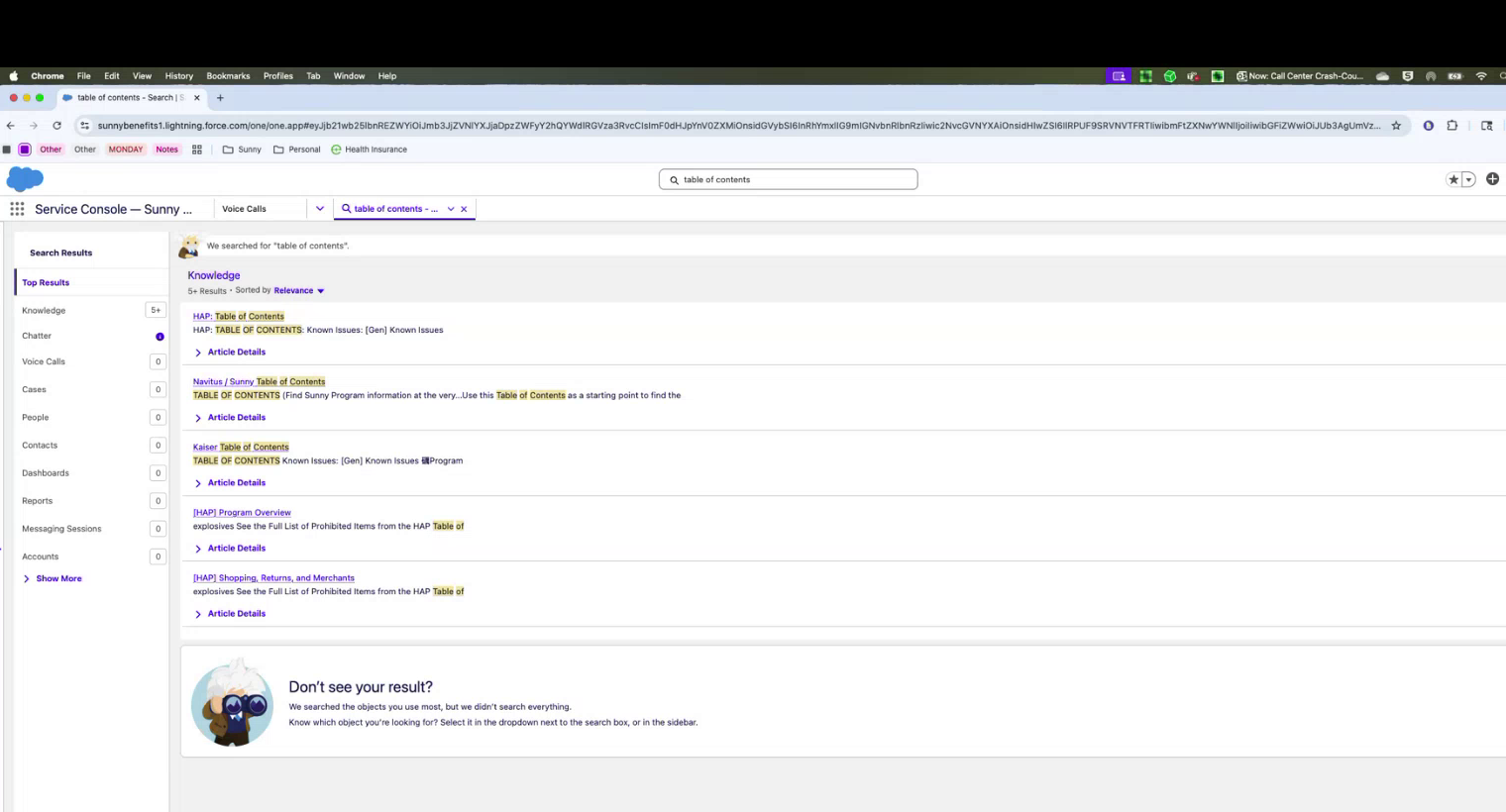
The central "landing zone" for all HAP-related articles in the Knowledge Base.
2. Plan Configuration "Bible"
The crosswalk that tells you exactly how much money a member gets (Monthly vs. Quarterly) based on their specific plan name.

3. Visual Navigation Guides
Screenshots of what the member sees on their desktop or mobile app to help you walk them through the portal.